How to install Raspberry Pi OS to NVMe storage by rpi-imager cli
เนื่องจากได้ case มาใหม่ซึงทำให้สามารถเพิ่ม NVME M.2 เข้าไปที่ Raspberry Pi ได้ และเครื่องที่ใช้อยู่ตั้งเป็น console mode เลยไม่มี mouse และ keyboard ให้ใช้และข้อมูลในเวปส่วนใหญ่จะเป็นวิธีการผ่าน GUI Desktop เลยจะมาแชร์วิธีการเอา Raspberry Pi OS ใส่เข้าไปยัง NVME storage ท่าไหน โดยขั้นตอนจะมีดังนี้
- Download Raspberry Pi OS จาก link ด้านล่าง
https://www.raspberrypi.com/software/operating-systems/#raspberry-pi-os-64-bitโดยได้เลือกไฟล์ 2024-07-04-raspios-bookworm-arm64.img.xz มา และใช้ command wget ในการโหลดตามตัวอย่าง
wget https://downloads.raspberrypi.com/raspios_arm64/images/raspios_arm64-2024-07-04/2024-07-04-raspios-bookworm-arm64.img.xz
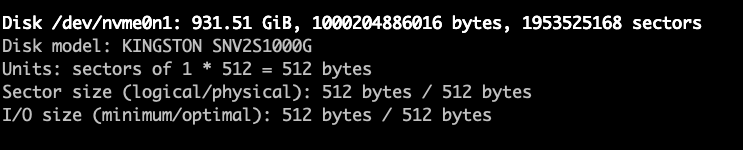
- ตรวจสอบชื่อ NVME device ด้วยคำสั่ง fdisk เพื่อใช้ในการระบุ device สำหรับการ extract OS เข้าไป
fdisk -l
จะเห้นมี disk device เยอะ ให้สั่งเกตุชื่อจะขึ้นต้นด้วย nvme ตามตัวอย่าง
- เมื่อได้ชื่อ disk แล้วให้รันคำสั่ง rpi-imager ตามตัวอย่าง
rpi-imager --cli <image file to write> <destination drive device>ตัวอย่างเช่น
rpi-imager --cli 2024-07-04-raspios-bookworm-arm64.img.xz /dev/nvme0n1</destination>
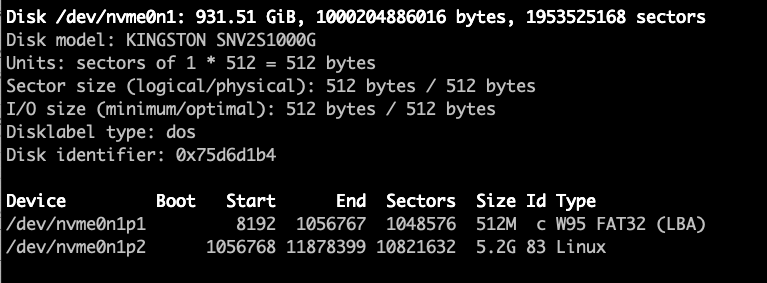
หลังจากรันคำสั่ง rpi-imager ใช้คำสั่ง fdisk เชค nvme จะพบว่ามีการเปลี่ยนแปลง partition table ตามนี้
- เมื่อจัดการ disk เสร็จแล้วให้แก้ไข Boot Order เพื่อให้ NVME เป็นตัวแรกในการ boot โดยรันคำสั่ง
rasp-configเลือก Advanced Options
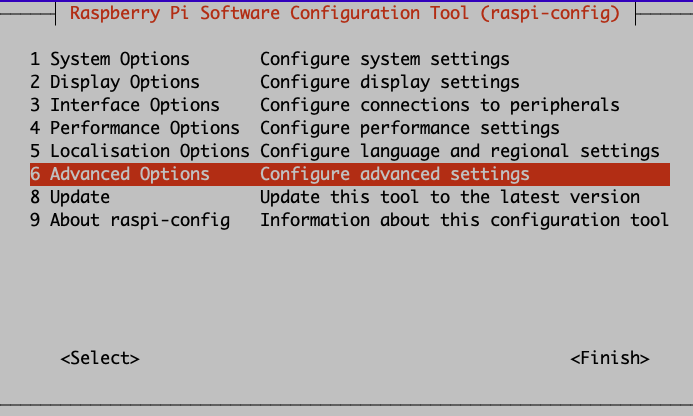
เลือก Boot Order
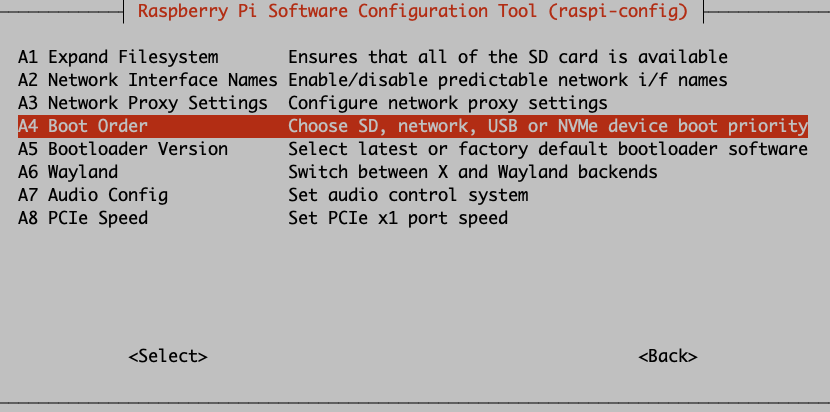
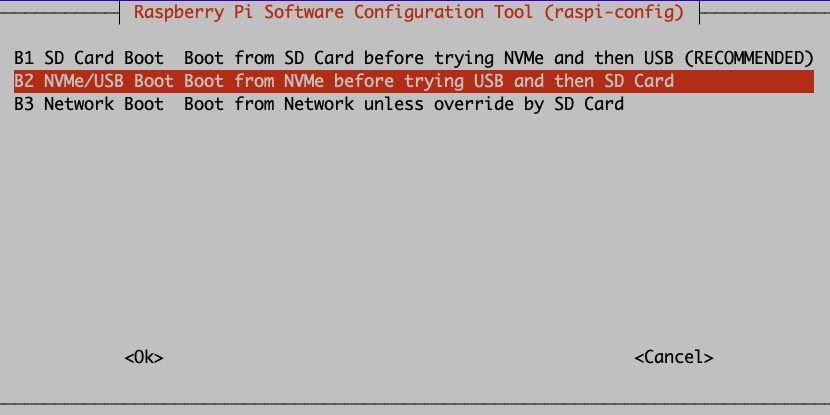
เลือก B2 NVMe/USB Boot และ OK
ระบบแจ้งว่าตั้งค่า boot เป็น NVMe/USB เป็น default แล้ว
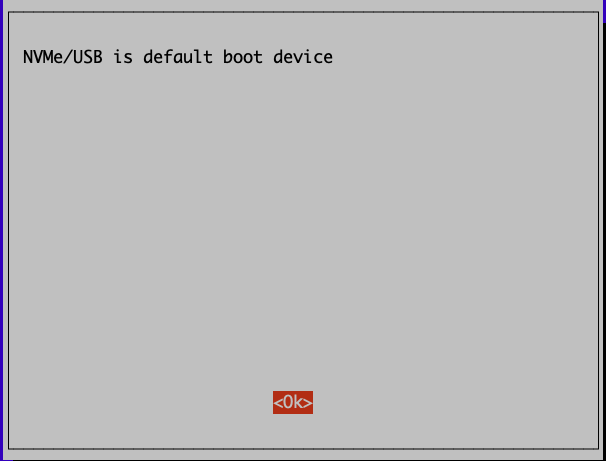
ให้ reboot เพื่อเริ่มใช้งาน NVMe
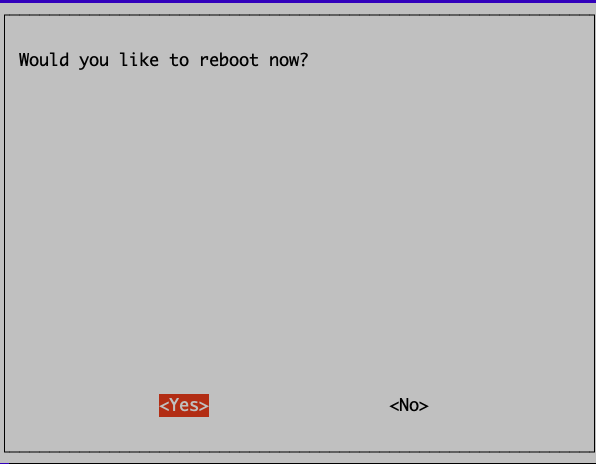
- Finsih and Reboot