How to install ChatGPT Desktop on Raspberry Pi 5
On a Raspberry Pi 5 running 64-bit Debian 13 Trixie with a desktop, you can download OpenAI’s ARM64 installer and install ChatGPT Desktop with apt.
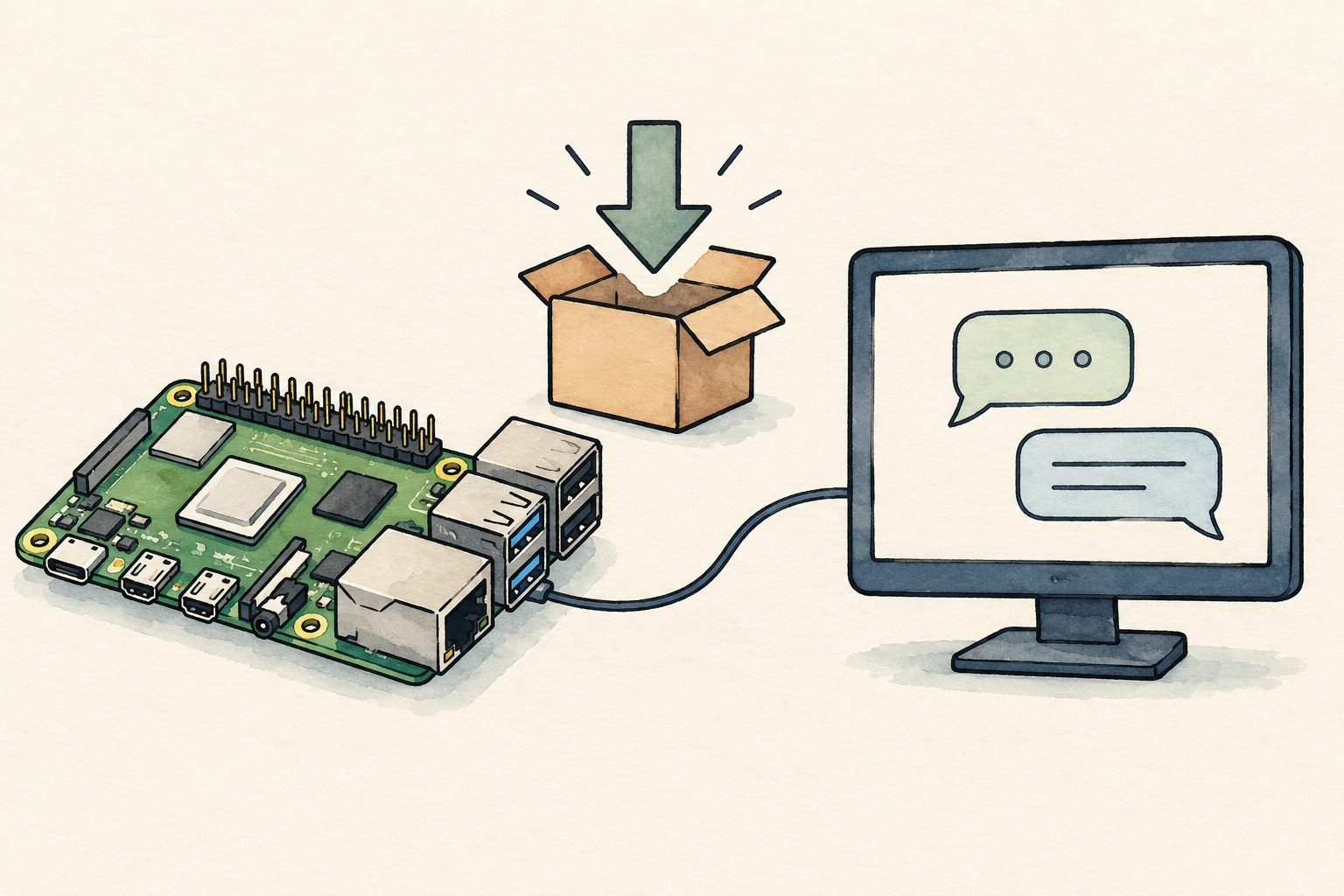
The Linux app is currently available to try as a preview. OpenAI’s Linux guide lists Debian 13 Desktop as supported. Before you start, open the Pi’s desktop and connect to the internet.
1. Check that the system is 64-bit
Open a terminal on the Pi and run:
uname -m
dpkg --print-architecture
The machine used for this example showed these results, in order:
aarch64
arm64
If you see aarch64 and arm64 as above, choose the ARM64 installer. If the second command shows armhf, the part of the system that runs your programs is still 32-bit. Switch to a 64-bit desktop system first.
Check the OS release as well:
cat /etc/os-releaseThis article uses 64-bit Debian 13 Trixie with a desktop. If your Pi only has a text console, add a desktop before trying to open the app.
2. Download the ARM64 package
Save the package in Downloads:
mkdir -p ~/Downloads
cd ~/Downloads
curl --proto '=https' --tlsv1.2 -fL \
  -o chatgpt_arm64.deb \
  https://persistent.oaistatic.com/codex-app-prod/linux/deb/latest/chatgpt_arm64.deb
This ARM64 download URL comes from OpenAI’s guide. If downloading in a browser, choose Ubuntu or Debian → ARM64 and use the actual downloaded filename in the following commands.
Inspect the package before installation:
dpkg-deb --field ./chatgpt_arm64.deb Package Version ArchitectureLook for the package name chatgpt and arm64 in the Architecture field. The version number may change depending on when you download it.
3. Install with apt
Open a terminal in the folder containing the .deb file and run:
sudo apt update
sudo apt install ./chatgpt_arm64.deb
./chatgpt_arm64.deb is the file in the folder you are currently in. apt also installs the other programs the app needs.
Once installation finishes, check the version and package type:
dpkg-query -W -f='${Package} ${Version} ${Architecture}\n' chatgptThe machine used for this example showed this version on October 27, 2026. You may get a different version when downloading later.
chatgpt 26.1021.22027 arm644. Launch the app and sign in
Open ChatGPT from the desktop app menu, or open a terminal on that desktop and run this with your usual account:
chatgptSign in with your ChatGPT account, following OpenAI’s quickstart, then start a chat or choose a project to work in.
If you use Wayland, try the normal launch command first. To open the app directly in Wayland mode, fully quit it and run:
chatgpt --ozone-platform=waylandOpenAI says this direct Wayland mode is still being tested. Window positioning and some keyboard shortcuts may not work fully.
Updating later
After installation, you can check where updates come from and update the app with apt:
apt-cache policy chatgpt
sudo apt update
sudo apt install --only-upgrade chatgpt
References: ChatGPT desktop app for Linux and ChatGPT desktop quickstart.