How to setup Caddy with Let's Encrypt using Docker Compose
If you need a web server that automatically requests and renews certificates from Let’s Encrypt, Caddy can help. It supports HTTP and HTTPS and can also work as a reverse proxy to forward requests to a web server behind it.
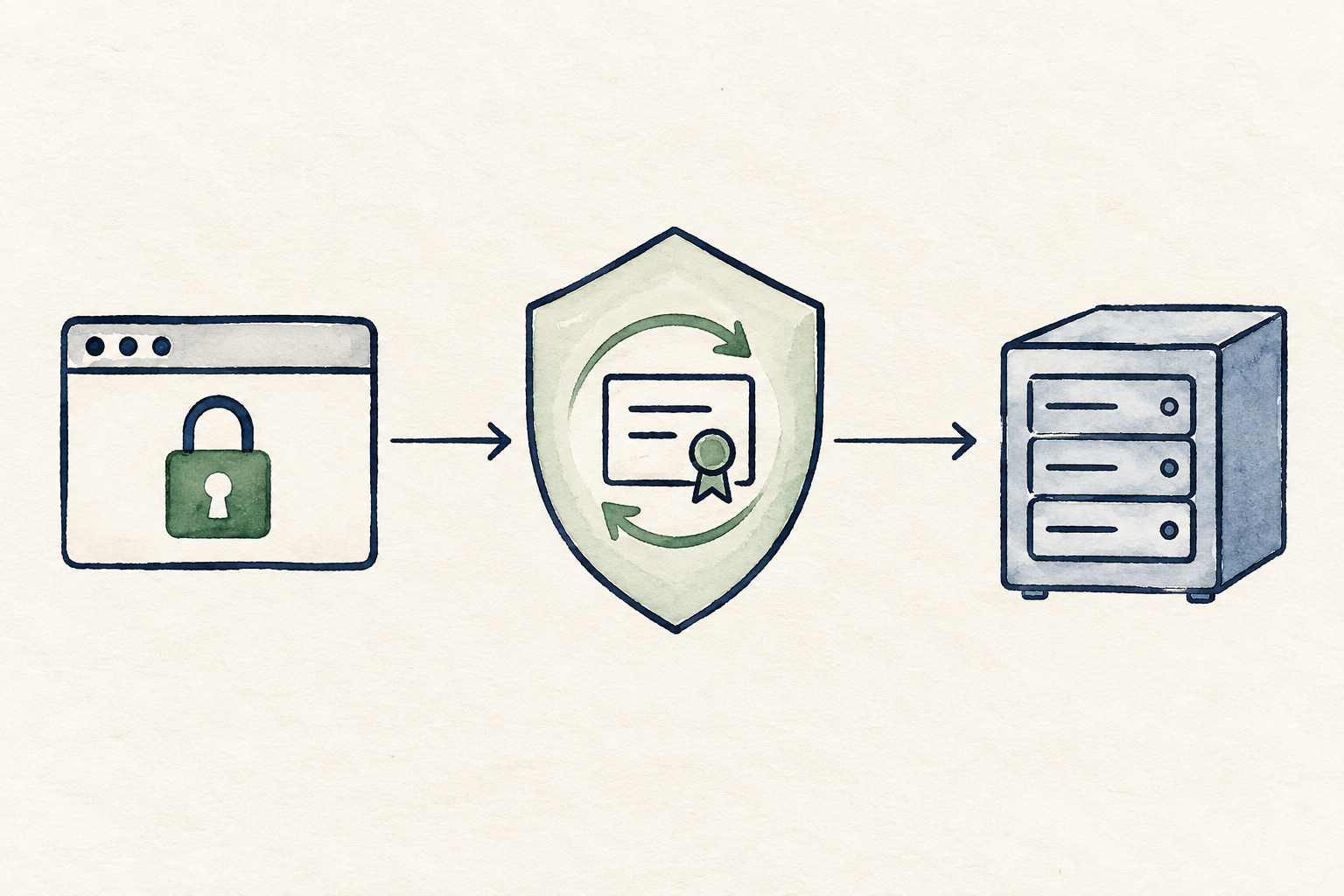
This example runs Caddy and an Nginx test site with Docker Compose. Nginx does not need a public port because Caddy can reach it over the Docker network.
Prepare the domain and ports
Install Docker and Docker Compose on the server and use a domain whose DNS you can manage. This example uses example.com and www.example.com; replace them with your own domain names.
Point both names to the server’s public IP address. Use an A record for IPv4 and an AAAA record for IPv6 if you use it. If you do not use IPv6, check that there is no old AAAA record pointing elsewhere.
Allow incoming TCP ports 80 and 443 from the internet to the machine running Caddy, including the operating system firewall and your cloud provider’s firewall. If the server sits behind a router, set up port forwarding too. Check that no other program already uses those ports.
If you use a DNS proxy or CDN, its configuration must allow domain validation requests to reach Caddy. Also check the HTTPS settings between the proxy and your origin server.
How Let’s Encrypt validates the domain
Let’s Encrypt checks that you control the domain before issuing a certificate. It does this through an ACME challenge. This proves control of the domain; it does not require the site owner to submit an identity card or enter a password into Let’s Encrypt.
Caddy enables the following methods by default and chooses between them based on what works:
- HTTP-01: Let’s Encrypt requests a temporary file under
/.well-known/acme-challenge/over HTTP on port 80 and checks Caddy’s response. You do not need to create the file yourself. - TLS-ALPN-01: Let’s Encrypt connects on port 443 and checks a response during the TLS connection. The challenge connection must reach Caddy.
Another method, DNS-01, checks a TXT record under _acme-challenge. It can work without opening a port for validation and supports wildcard names such as *.example.com. It needs a DNS provider module and API access configured in Caddy; the example below does not configure DNS-01.
Create the Docker Compose files
Create a folder for this example:
mkdir -p caddy-https/caddy caddy-https/site
cd caddy-https
Create a test page:
printf '%s\n' '<h1>Caddy HTTPS is working</h1>' > site/index.htmlCreate compose.yaml:
services:
  caddy:
    image: caddy:2.11.7-alpine
    restart: unless-stopped
    ports:
      - "80:80"
      - "443:443"
    volumes:
      - ./caddy:/etc/caddy:ro
      - caddy_data:/data
      - caddy_config:/config
    depends_on:
      - web

  web:
    image: nginx:stable-alpine
    restart: unless-stopped
    volumes:
      - ./site:/usr/share/nginx/html:ro

volumes:
  caddy_data:
  caddy_config:
caddy_data stores the certificates and ACME account data. caddy_config stores Caddy’s configuration data. Both are Docker volumes, so they remain when containers are recreated. Back up these volumes and do not delete them while you still need the data.
Configure Caddy
Create caddy/Caddyfile and replace the email address and domains with your own:
{
    email [email protected]
    acme_ca https://acme-v02.api.letsencrypt.org/directory
}

example.com, www.example.com {
    reverse_proxy web:80
}
The email address is the ACME account contact. The acme_ca setting selects Let’s Encrypt directly. reverse_proxy web:80 forwards requests to the web service on the Docker network; you do not need to enter a container IP address.
Once DNS and the ports are ready, start the containers:
docker compose up -dCheck the Caddy service and its logs:
docker compose ps
docker compose logs -f caddy
Caddy will request the certificate and complete domain validation automatically. If it cannot issue the certificate, check the logs, DNS, ports and firewall.
Check HTTPS and renewal
Open https://example.com and https://www.example.com from an external network, or run these commands with your own domain:
curl -I http://example.com
curl -I https://example.com
curl -I https://www.example.com
The HTTP request should redirect to HTTPS, and HTTPS should connect without a certificate error. To see the issuer and expiry date:
openssl s_client -connect example.com:443 -servername example.com </dev/null 2>/dev/null | openssl x509 -noout -subject -issuer -datesThis shows the certificate returned by the endpoint you connect to. If a CDN or proxy sits in front of the server, it may be the CDN’s certificate rather than Caddy’s origin certificate.
While the service is running, Caddy checks and renews certificates automatically; there is no need for a separate cron job or Certbot. DNS, ports and the challenge configuration must still work during renewal. After changing caddy/Caddyfile, validate the configuration and reload it:
docker compose exec caddy caddy validate --config /etc/caddy/Caddyfile
docker compose exec caddy caddy reload --config /etc/caddy/Caddyfile
If issuance fails, check that A/AAAA records point to the right server, ports 80/443 are reachable from outside, no other program holds the ports, and no proxy or firewall blocks the challenge. For repeated tests, use Let’s Encrypt staging to reduce the chance of hitting rate limits, then change acme_ca back to production when ready. Browsers do not trust staging certificates.
References: Caddy Automatic HTTPS, Let’s Encrypt Challenge Types, Caddy Docker image


